

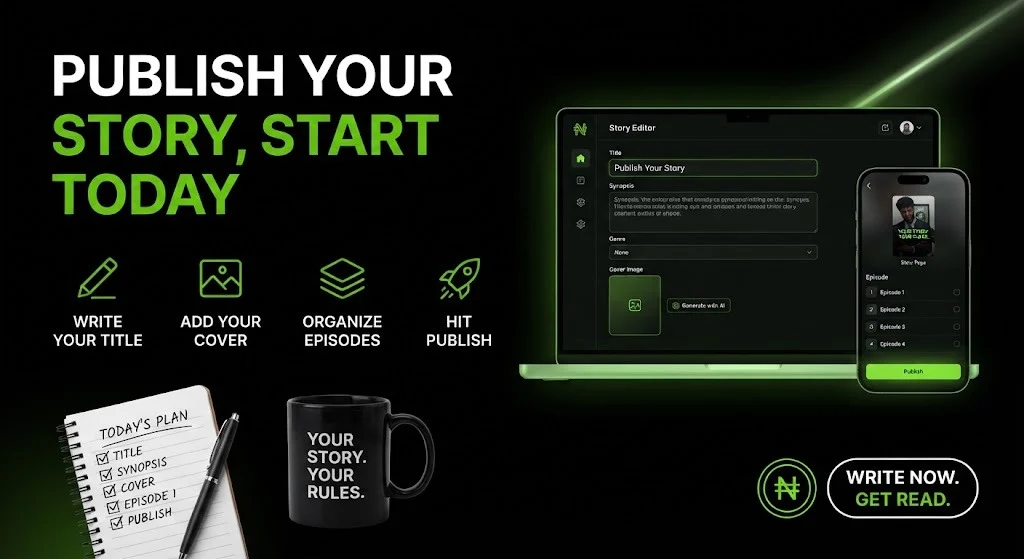
To publish a story on Kreator, go to your dashboard, create a story with a title, synopsis, genre, and cover image, add at least one episode, then hit publish. Miss any one of those pieces, and Kreator will quietly save your story as a draft instead of putting it live, so this guide walks through exactly what each step needs and why.
If you have ever hit publish on Kreator and been confused when nothing actually went live, you are not alone. The platform has a few quality checks running in the background, and once you know what they are, they take two minutes to satisfy.
Starting a New Story on Kreator
Every story on the platform begins from your dashboard. You choose to create a new story, and from there you are asked for four things before anything else: a title, a synopsis, a genre, and a cover image.
Stories on Kreator are organized into seasons and episodes, the same way a TV series releases week by week, rather than one long piece dumped onto a page all at once. This structure is what keeps readers coming back, and it is also why the platform will not let an empty shell of a story go live.
Why Your Story Title Needs Real Length
A short, vague title will get flagged before you even finish typing it. Kreator checks your title as you write, and titles that come in too thin get stopped at the door.
Aim for a title with real length and personality, something closer to forty characters than four words. Compare these two:
- Weak: “Lost Girl”
- Strong: “The Lost Girl Who Walked Into Lagos With Nothing but a Name”
The second one tells a reader what kind of story they are about to open. It also gives Kreator’s own duplicate check something specific to work with, since two different authors are far less likely to land on the exact same long title than the exact same short one.
Writing a Synopsis That Actually Sells the Story
Your synopsis is the pitch a reader sees before they commit to episode one, so it deserves more thought than a single rushed sentence, but it also has a ceiling. Keep it tight, focused, and well under the platform’s character limit rather than trying to summarize every plot twist you have planned.
A synopsis that names your main character, states the stakes, and hints at what could go wrong will pull in more readers than one that only describes the setting.
A useful pattern is one sentence for who the story follows, one for what they want, and one for what stands in their way. That is usually enough to fill a strong synopsis without spilling past the limit.
Adding a Cover Image, Yours or AI-Generated
A story without a cover reads as unfinished, even if the writing inside it is excellent, so Kreator asks for one at creation. You have two ways to get there.
- Upload your own image, something you designed or sourced yourself that fits the mood of your story.
- Use AI story cover generation instead, which reads your title, synopsis, and genre and creates a cover that matches the tone of your story automatically.
If you go the AI route, the tips work in your favor here too. A clear, descriptive synopsis and the correct genre give the AI more to work with, so it is worth locking those two details in first, then generating the cover last.
Picking the Right Genre for Your Story
Kreator hosts every genre Nigerian readers already gravitate toward, including Action, Adventure, Comedy, Drama, Fantasy, Folktales, Horror, Mystery, Romance, Sci Fi, Teen Fiction, Thriller, and True Life. Picking the genre that actually matches your story helps readers discover it, and it feeds directly into how accurate your AI-generated cover turns out if you choose that option.
True Life stories are pulling strong attention on the platform right now, with titles like “The Man Who Dug a Tunnel to Save His Village” and “Africa’s Underground Kingdom” sitting among the most read entries. If you are comfortable retelling real events with heart, that genre is worth trying first.
Why You Need at Least One Episode Before You Publish
This is the part that catches most new authors off guard. A story on Kreator is not considered ready to publish until it has at least one episode attached to it, and a season on its own does not count.
If you try to publish a brand new story before adding an episode, Kreator saves it as a draft automatically and tells you to add an episode first. The same rule applies later too. If you go back and delete the only episode a published story had, that story gets quietly pulled back to draft as well, since a published story with nothing to read defeats the entire point of publishing.
So the real order is title, synopsis, genre, cover, then your first episode, and only after that does the publish button actually take effect.
Organizing Seasons and Episodes as You Go
You can add a new episode to your current season at any time, and when you are ready to open a new arc of your story, you start a new season. New episodes are saved as drafts until you choose to publish them individually, which gives you full control over what your readers see and when they see it.
As the creator, you also decide what stays free and what requires a subscription to unlock. You can lock a single episode, or lock an entire season at once if you want to reserve a full arc for subscribers. Your story’s overall status can also be marked as ongoing or completed, so readers always know whether to expect more episodes.
Editing Your Story After It Goes Live
Nothing about a published story on Kreator is permanent in the sense of being untouchable. You can edit your story’s title, synopsis, cover, and episodes at any time from your dashboard, and every change is picked up the next time a reader loads the page.
This matters most in the first few days after you publish, when you are still watching how readers respond to your title and synopsis and might want to sharpen either one.
Publish Your First Story Today
You do not need a publishing deal or a large following to start, just a story, a free account, and one finished episode to go with it. Head over to Kreator’s sign-up page, fill in your title, synopsis, genre, and cover, write your opening episode, and hit publish. Your next reader could already be waiting on the other side.
Discussion 0